

THE CREATOR EDIT · OCTOBER 2026
Free AI Video Generators for Instagram Reels: Watermark, Voice and Export Limits
Before spending your free credits, compare what you can actually export. Four tools, the limits that matter, and lessons from our own 30-second educational reel.
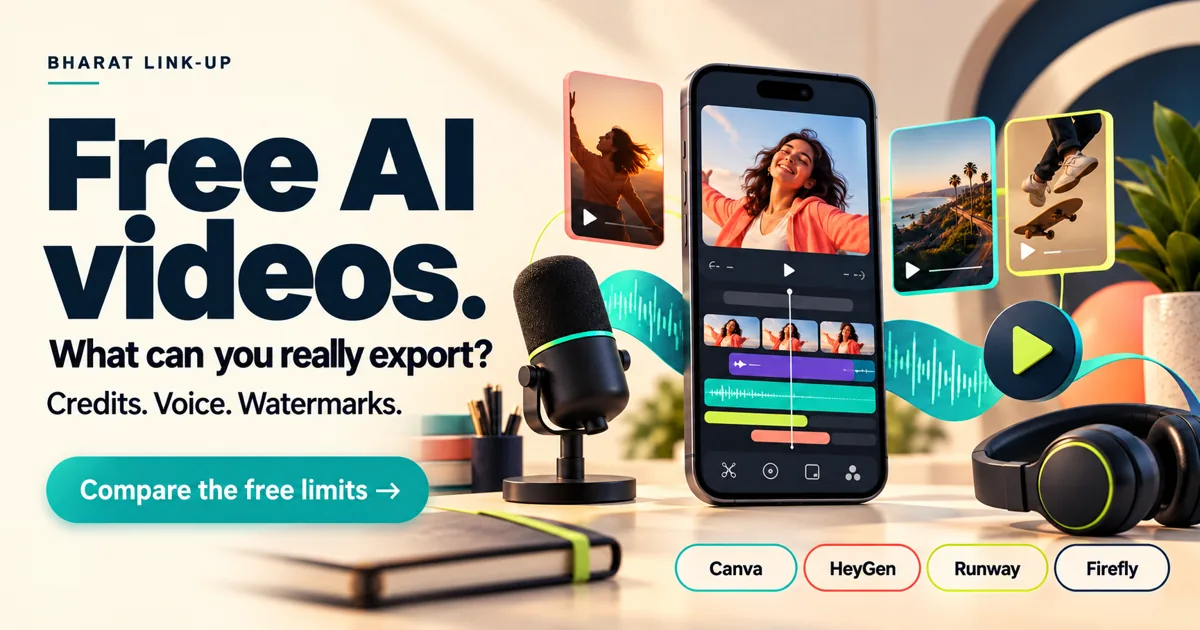
The best free AI video tool for Instagram Reels depends on the job: generating a scene, creating a talking presenter, or editing footage you already own. Those are different tasks. A free account does not necessarily mean a watermark-free export, recurring video credits or included narration.
For a creator with a $0 budget, start with the final deliverable: a vertical video with understandable audio, readable text and an export you can use. Then choose the tools. Otherwise, a polished preview can become a paid download or a silent clip.
Free AI video tools: what you get before paying
Canva belongs here as an editor with AI features, rather than a promise of unlimited text-to-video generation. HeyGen focuses on presenter videos; Runway and Firefly can generate visual clips. Compare the relevant part of your workflow.
| Tool / useful job | Free allowance | Watermark / export | Voice and practical limit |
|---|---|---|---|
| Canva Assemble and edit a reel | Free video editing. AI generation has limited uses; no universal current count verified here. | Canva says free videos can export without watermarks when all elements, footage and music are free. Paid assets change that. | Add your own recorded narration. An editor’s free plan does not establish that every AI voice app is free. |
| HeyGen Talking presenter | 3 videos per month, up to 1 minute each, according to its Free plan. | Its social-video FAQ says free exports include a watermark. Confirm resolution in the account; we have not verified a current export. | Presenter-led scripted video. Three monthly videos leave little room for retakes or daily posting. |
| Runway Generated visual clips | 125 one-time credits. The free selection of models can change; this is not a monthly refill. | Runway’s free-plan help page states that generated free videos have a watermark. | Voice and model access depend on the selected tool. No free-tier audio or fixed clip length is assumed here. |
| Adobe Firefly Generated visual clips | Limited complimentary generation. Adobe says daily free limits, available features and models can change. | Free-account export, watermark and resolution were not independently tested for this article. | Video and audio features have separate access and credit rules. Check the selected model before using an allowance. |
Sources: Canva video editor and AI editor FAQ; HeyGen pricing and social-video FAQ; Runway pricing and free-plan details; Adobe generative-credit FAQ.
A missing detail is not an endorsement. We have not established identical commercial-use rights across these products. For client deliverables, review the applicable tool, asset and model terms, and get permission for faces, voices and footage.
Can a free AI reel generator export without a watermark?
Check the final exported file, not just the preview. Free AI video generation and free video editing are different allowances. A tool may let you create a clip but restrict watermark removal, resolution, voice or repeat use. We have not established an unlimited, watermark-free generator for every reader.
Which workflow makes sense for your reel?
For a repeatable $0 educational reel
Our practical recommendation is to edit your own images or footage, record your own voice and use free design assets. This avoids relying on scarce AI scene-generation credits for every post. Canva is one option for assembly; check every asset before export.
For an AI presenter
Consider HeyGen’s free tier as a limited evaluation, with its stated watermark. Plan the script before generating. A presenter that pronounces a brand incorrectly still needs another pass, regardless of how realistic it looks.
For one striking visual scene
Consider a generator such as Runway or Firefly after checking current access. Generate a simple piece of supporting footage, then add exact text and narration in the editor. Do not ask the scene model to produce a whole tutorial with precise labels, facts and a flawless voice in one attempt.
These are workflow recommendations, not a measured quality ranking of all four tools.
Our published AI reel: a real 30-second production example
Our first version had errors and was removed. Another version needed narration. The final October 8 reel used three ten-second scenes, with Canva-generated narration added separately and the finished timeline assembled into one vertical video.
The final export was 720 × 1280 pixels and exactly 30 seconds. Our file checks confirmed an audio signal and the scene durations. Those checks alone could not approve pronunciation or factual accuracy: the owner reviewed and approved the completed preview before publishing.
Watch the published Bharat Link-Up reel ↗. It illustrates our production workflow, not a current free-plan export test for every tool in the table. The voice app’s access at that time should not be read as a promise of the same allowance today.
- Budget for corrections. Three free generations can disappear before a usable reel is ready.
- Check the audio independently. Background music is not spoken narration.
- Add precise text in the editor. Verify tool names, dates and any numbers yourself.
- Preview the whole export. A good opening frame does not establish that all scenes work.
A practical brief for a 30-second Instagram Reel
For a website enquiry reel, link the finished post to the seven-point website enquiry checklist, then make the next step clear. This is a distribution example, not a promise that AI video improves rankings.
This original example explains how to check a free video tool. It is a production brief, not a claim that any generator will follow it perfectly.
- 0–10 seconds — the hook. “Before you use your free AI video credits, check three things.” Show a vertical preview with an export button. Add the title yourself.
- 10–20 seconds — the explanation. “Can you download it? Does it include voice? Will it carry a watermark?” Show one clear card for each question.
- 20–30 seconds — the action. “Export a short sample first. Then build your full reel. Read our free-tool comparison before choosing.” Show your own checklist and brand.
Record the script and time it before making scenes. If it runs long, shorten the copy. Keep each scene to one idea, leave room for the platform’s controls and verify the final text on a phone. Start the project in 9:16 rather than assuming free access to a paid resize feature.
Visual prompt for a supporting clip: “Vertical 9:16, a clean creator workspace, close-up of a phone beside a storyboard, restrained movement, no text, no brand logos, no speech.” Generate only the visual; add the verified explanation and narration yourself.
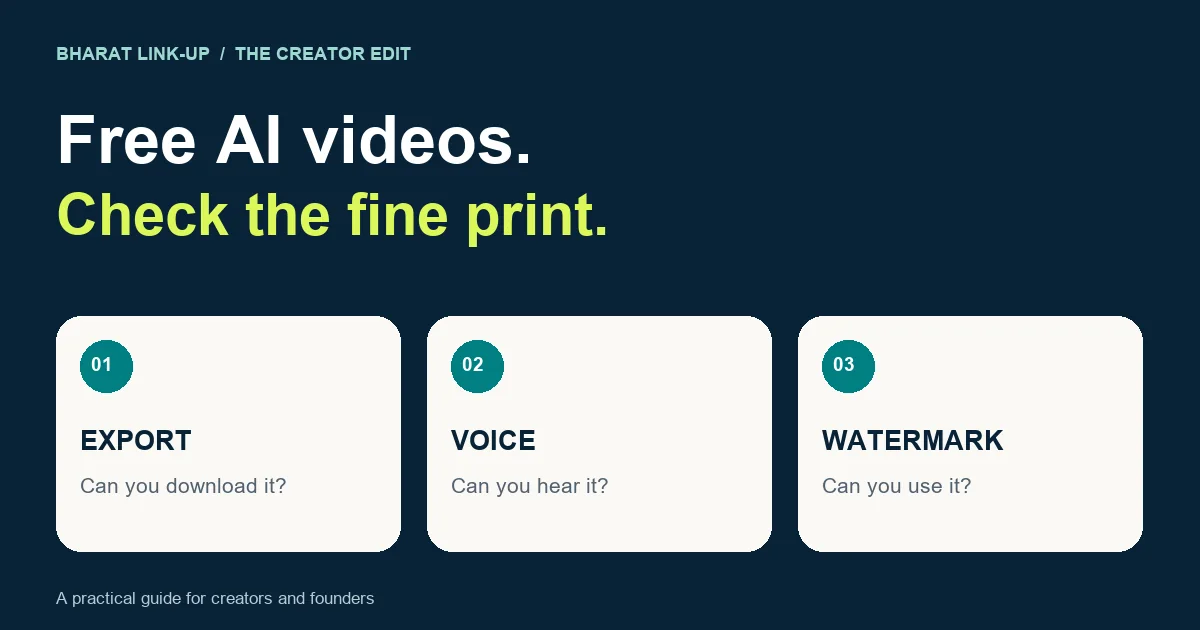
Check these seven things before using your final export
- Allowance: record the remaining credits and whether they renew or are one-time.
- Download: confirm that an actual MP4 export is available on your plan.
- Watermark: inspect the downloaded file, including the last frame.
- Voice: listen with headphones; check names, timing, volume and pronunciation.
- Format: confirm 9:16, the chosen resolution and legible captions.
- Facts and rights: verify every claim and your permission to use assets, faces, voices and music.
- Next step: send viewers to a useful resource. For an Instagram post, use the appropriate profile or Story link rather than assuming a caption URL is clickable.
For a repeatable posting routine, use our free 30-day social media content calendar. For ideas to research before writing the script, see our AI and creator opportunities guide.
Questions creators ask about free AI Reels
Is there a free AI video generator with no watermark?
There is no single answer across tools. Canva says you can export watermark-free videos using free assets; that does not mean unlimited AI scene generation. HeyGen’s and Runway’s cited free-plan pages state watermarks. Check an actual export on your account.
Why did my AI video have no voice?
The selected model or workflow may only create visuals. Check whether speech is included, generated separately or must be uploaded. Listen to the exported file rather than relying on music or an animated presenter to indicate speech.
Can three free videos support daily posting?
Three exports per month cannot cover a daily schedule by themselves. Reuse a legal editing template with your own footage and recorded narration, and reserve limited generation for scenes that need it.
Does an AI reel guarantee website traffic?
No. A useful topic, a clear explanation, distribution, a working next-step link and an audience with the right need all matter. Measure relevant visits and inquiries as well as views.
Turn a useful idea into a stronger feed.
Need help with content planning, design or editing? Share your audience and available assets with Bharat Link-Up so we can agree a practical scope.
Discuss your content plan ↗Editorial research by Bharat Link-Up Editorial. Product limits checked October 9, 2026. No affiliate links in this guide. Our recommendations distinguish provider documentation from our own historical production experience.